

Struggling to switch your scale from pounds to kilograms? You worry about incorrect measurements and wasting time with confusing buttons. I will show you the simple steps to fix this.
To change from lb to kg, turn on your scale. Press and hold the "UNIT" or "MODE" button. Keep pressing it to cycle through the options (lb, kg, oz). Stop when "kg" is displayed. The scale will automatically save your choice. Some models might have a dedicated switch underneath.
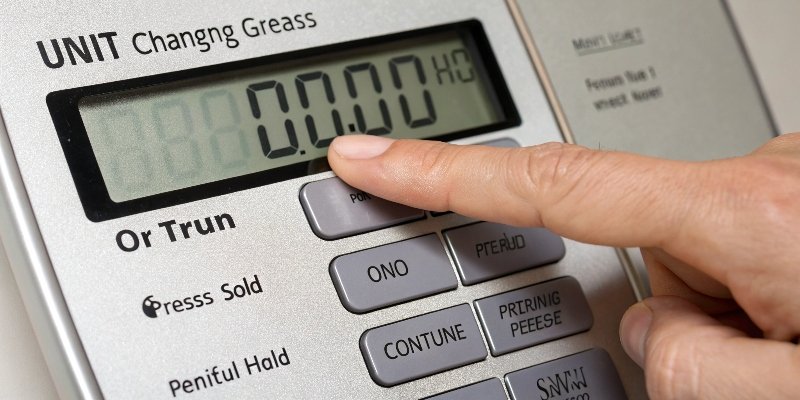
This simple unit switch is crucial for accuracy in many industries. But what if your scale's buttons are different? Or what if it needs a full reset? Over my 18 years in the industrial scale business, I have seen it all. Let's look at more specific situations you might face.
How to change digital scales from pounds to kg?
Your scale is stuck on pounds, and your client needs everything in kilograms. This simple mistake can cause big delays and confusion in your reports. Let's fix it right now.
Most digital scales have a specific "UNIT" button. Power on the scale and press this button. Each press will toggle between pounds (lb), kilograms (kg), and sometimes ounces (oz). Simply stop pressing when the display shows "kg". The setting is usually saved automatically.
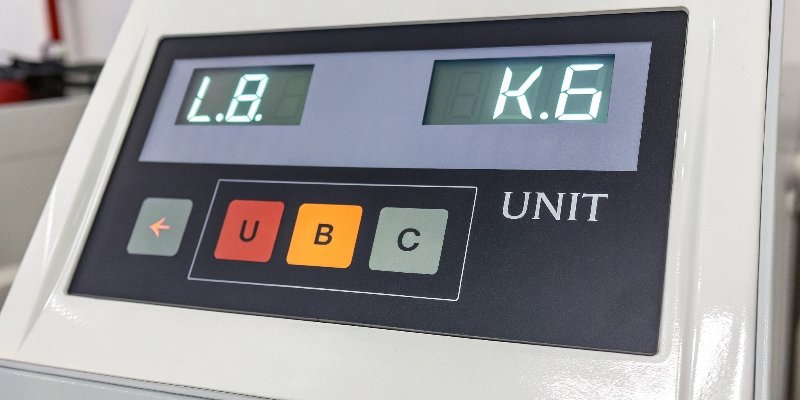
From my experience manufacturing scales, I can tell you that button placement and function are key design choices. We focus on making this intuitive for users like you. But not all scales are the same. Let us break down the common methods.
Button-Based Methods
The most common way to change units is through a button. Look for ones labeled:
- UNIT: This is the most direct. A simple press cycles through the units.
- MODE: This button often has multiple functions. You might need to press it quickly to change units or hold it down to enter a deeper settings menu.
- ZERO/TARE1 + UNIT: Some designs prevent accidental changes. You may need to press two buttons together, like holding "ZERO" while pressing "UNIT".
Switch-Based Methods
Some scales, especially older or more rugged industrial models, use a physical switch2.
- Location: Check the back or bottom of the scale.
- Operation: It is usually a small slide switch with "lb" and "kg" positions. Just move it to the desired unit. This physical lock prevents software glitches from changing the unit.
We design our Weigherps scales with clear interfaces, but always check your manual if you are unsure. A minute reading the manual can save you thirty minutes of frustration.
How do I reset my digital weight scale?
Is your scale showing errors or inaccurate readings? You fear the device is permanently broken, leading to costly replacements and downtime. A simple reset often solves the problem.
To reset a digital scale, first remove all weight from the platform. Turn the scale off, then remove its batteries or unplug it from the power source. Wait for 30-60 seconds. This allows the internal components to fully discharge. Then, re-insert the batteries or plug it in and turn it on.
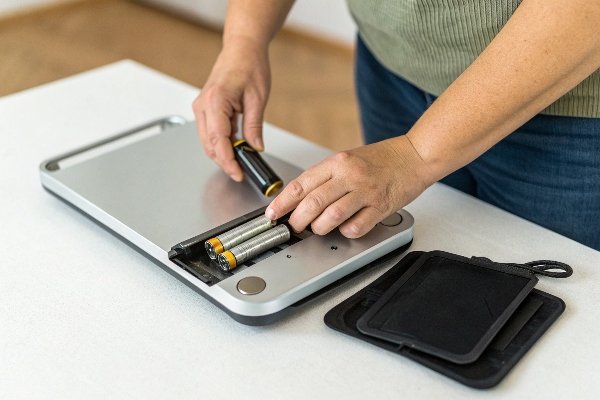
A reset is like a reboot for your computer. It clears temporary errors and glitches. In my work with software vendors who integrate our hardware, I always recommend they understand the reset process. It is the first step in troubleshooting. There are two main types of resets.
The Soft Reset (Power Cycle)
This is the most common and safest method.
- Remove Power: Unplug the scale or take out the batteries.
- Wait: Give it at least 30 seconds. This is critical. It allows the internal capacitors to drain, clearing any volatile memory where errors might be stored.
- Restore Power: Put the batteries back in or plug it in.
- Turn On: The scale should now boot up with its factory default settings3, or the last saved settings.
The Hard Reset (Factory Reset)
This is more drastic and wipes all custom settings, including calibration.
- Warning: Only do this if a soft reset4 does not work and you are prepared to recalibrate the scale.
- Method: This process varies widely. It often involves holding a specific button combination (like "MODE" + "ON/OFF") while powering on the device. You must consult your user manual for the exact procedure. Performing this incorrectly could damage the scale. As manufacturers, we program this feature carefully, but it is meant as a last resort.
How to set a digital weight machine in kg?
You just unboxed a new scale and need to set it to kilograms. The default setting is often pounds, causing confusion from the start. Let's get it right, first time.
To set a new digital scale to kg, power it on. Look for a "UNIT" or "MODE" button. Press it repeatedly until "kg" appears on the screen. If there is no such button, check for a physical switch on the bottom or back of the scale and slide it to the "kg" position.
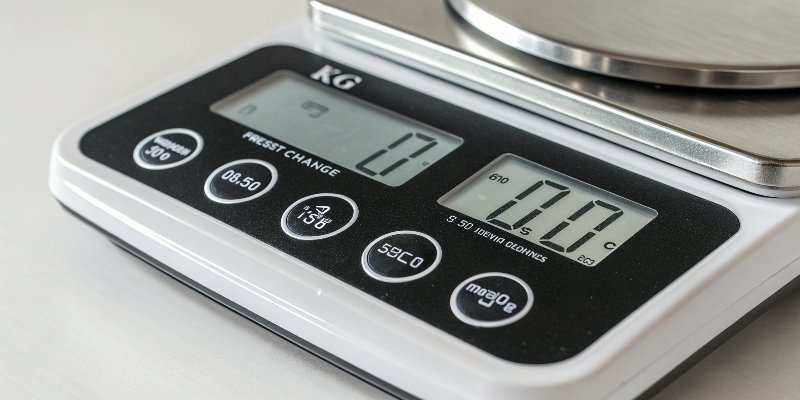
Setting up a new scale should be a simple process. As a manufacturer, our goal is to get you weighing accurately as fast as possible. When a client, a software provider in Germany, first received our IoT scales5, their main concern was making sure all 50 units were set to kilograms before deployment. Here is the streamlined process we guide our clients through.
Initial Setup Steps
- Find a Stable Surface: The first step is always placing the scale on a flat, level, and vibration-free surface. An unstable surface will give you inaccurate readings, no matter the unit.
- Power On and Stabilize: Let the scale boot up and display "0.0".
- Locate the Unit Control: As discussed, this is usually a button or a switch.
- Button: Press "UNIT" until "kg" is displayed.
- Switch: Flip the switch to "kg".
- Perform a Zero Tare: Press the "ZERO" or "TARE" button to ensure the scale starts from a true zero point.
| Step | Action | Purpose |
|---|---|---|
| 1 | Place on flat surface | Ensures reading accuracy. |
| 2 | Power on and wait | Allows sensors to stabilize. |
| 3 | Use UNIT button/switch | Selects your desired unit (kg). |
| 4 | Press ZERO/TARE | Calibrates the starting point. |
This initial setup is vital. It ensures that all subsequent measurements are correct from the very beginning.
How to change from kg to lb on smart scale?
Your smart scale is synced to an app, but the units do not match. This creates confusing data and defeats the purpose of having a smart device. Let's sync them up.
To change units on a smart scale, open its companion app on your phone. Go to the app's "Settings" or "Profile" section. Find the "Units" or "Measurement Units" option and select "lb" (pounds) instead of "kg." The change should automatically sync to your scale via Bluetooth or Wi-Fi.
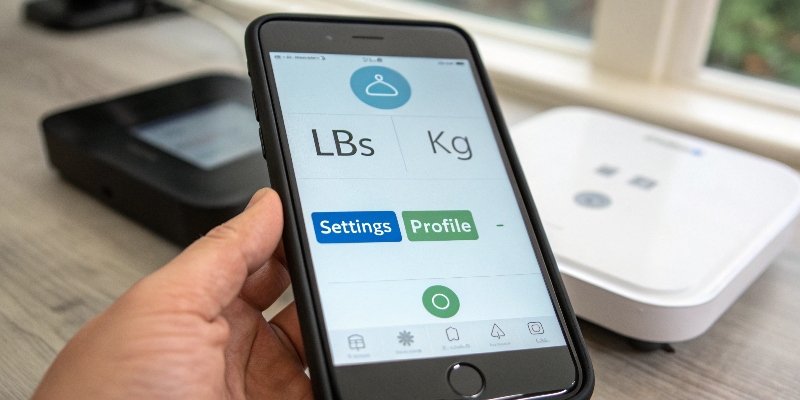
Smart scales, especially the IoT weighing systems we specialize in, add another layer: the software. The unit setting is often controlled by the app, not the physical device. This centralizes control, which is great for managing many devices. For our software vendor clients, this is a huge benefit. They can control an entire warehouse of scales from one dashboard.
Changing Units via App
- Open the App: Launch the scale's dedicated application on your smartphone or computer.
- Navigate to Settings: Look for a gear icon (⚙️) or a menu item labeled "Settings," "My Account," or "Profile."
- Find Unit Preferences: Inside settings, you will find an option like "Units," "Unit of Measurement," or "Weight Unit."
- Select Your Unit: Tap this option and choose between "kg" and "lb." Some apps may also offer "st" (stone).
- Sync with Scale: The app should automatically push this new setting to your scale the next time they connect. Make sure your scale is on and Bluetooth/Wi-Fi is active.
Sometimes, the scale itself can override the app. If the app shows "lb" but the scale shows "kg," try changing the unit on the physical scale first. Then, re-sync with the app. This ensures both hardware and software are aligned.
Conclusion
Changing units is usually simple. Find the UNIT button or check the app settings. A quick reset can also solve many common scale issues, getting you back to accurate weighing.
-
Understand the importance of the ZERO/TARE button for accurate weight readings. ↩
-
Find out where to locate the physical switch on your scale for unit changes. ↩
-
Understand what factory default settings are and how they affect your scale's performance. ↩
-
Learn about the soft reset process and how it can resolve common scale issues. ↩
-
Discover the innovative technology behind IoT scales and their benefits for users. ↩



Comments (0)