

Your scale is giving incorrect readings, and it's stopping your work. This uncertainty can ruin your production data. But most fixes are simple if you know where to look.
To fix most digital scale problems quickly, first check the environment for stability, vibrations, and drafts. Next, ensure a stable power source with fresh batteries or a secure AC adapter. Finally, clean any debris from under the weighing pan and perform a simple recalibration.

Troubleshooting is a big part of what we do. After manufacturing scales for 18 years, I've seen almost every issue imaginable. The good news is that you, the user, can solve the vast majority of them without calling for service. You just need a clear, methodical approach. I want to walk you through the most common problems I've seen and give you the same advice I give my clients. Let's break down these issues one by one, so you can get back to work with confidence in your measurements.
Why is my digital scale giving inconsistent readings?
Frustrated by numbers that just won't stay still? This makes you doubt every measurement you take. I'll show you the most common reasons and how to fix them quickly.
Inconsistent readings usually come from environmental interference like vibrations, drafts, or temperature changes. They can also be caused by an unstable power supply (low battery) or electromagnetic fields from other nearby devices. Securing a stable environment is the first and best fix.

In my experience, 90% of jumping numbers have nothing to do with the scale being broken. It's almost always the environment. Your scale's load cell is an incredibly sensitive instrument. It's designed to detect tiny changes in weight, which means it can also detect other forces you might not notice. I once had a client whose scale went crazy every day at 3 PM. It turned out a large air conditioning unit on the floor above kicked on at that time, causing a low-frequency vibration. We solved it with a simple anti-vibration mat. To get stable readings, you have to control these factors.
Key Factors Affecting Scale Stability
| Factor | Description | Quick Solution |
|---|---|---|
| Vibration | Nearby machinery, heavy foot traffic, or even a shaky workbench can cause readings to fluctuate. | Move the scale to a solid, level surface. A ground floor is always best. Use an anti-vibration table or mat for high-precision work. |
| Airflow | Drafts from open windows, vents, or even people walking by can exert pressure on the weighing pan, altering the reading. | Use the scale in a draft-free room. For precision scales, use a draft shield. |
| Power Issues | A low battery or a faulty power adapter provides inconsistent voltage to the load cell, causing erratic behavior. | Replace the batteries with a fresh set. Ensure the AC adapter is plugged in securely and is the correct model for your scale. |
| EMI | Electromagnetic Interference from cell phones, computers, or motors can disrupt the scale's electronics. | Keep all other electronic devices at least 3 feet (1 meter) away from the scale during use. |
How do you properly reset a digital scale to fix common errors?
Seeing a frozen screen or a strange error? A reset can often fix it, saving you a service call. But doing it wrong can cause more problems. I will show you the right way.
To properly reset a digital scale, start with a power cycle. Turn the scale off, wait for 30 seconds to let the internal components fully discharge, then turn it back on. For zeroing errors, press the 'ZERO' or 'TARE' button with an empty pan.
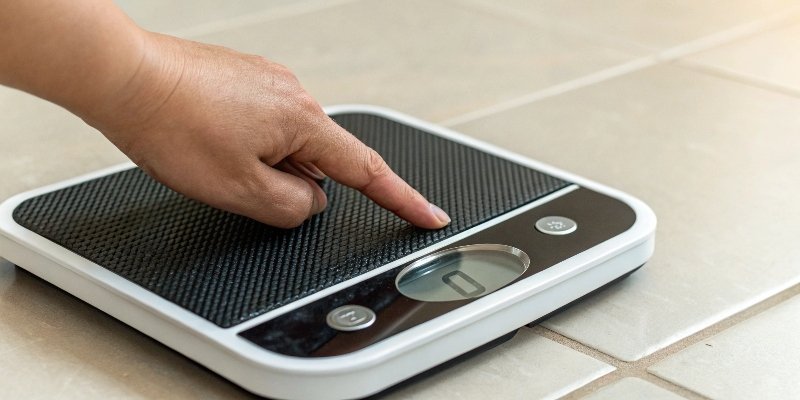
Think of it like restarting a computer. Minor software glitches can build up over time, causing the scale to behave strangely. A simple reset clears these glitches. I always tell my clients to try this first. Before you assume the worst, just give the electronics a moment to completely reset. You'd be surprised how often this works. However, it's important to understand the difference between a simple reset and a factory reset1, as they have very different outcomes.
Types of Scale Resets
1. Power Cycle (Soft Reset)
This is your first move for almost any software-related problem, like a frozen display or unresponsive buttons. The key is to wait. Unplugging it and immediately plugging it back in might not be enough. The internal capacitors need time to discharge completely, which clears the temporary memory where glitches live.
- How to do it: Turn the scale off using its power button. If possible, also unplug it from the wall or remove the batteries. Wait a full 30 seconds. Then, restore power and turn it on.
2. Zero Function Reset
This is not a system reset, but a reset of the current weight measurement. You should do this every time before you weigh something. It fixes the common issue where the scale shows a small weight even when the pan is empty, often due to temperature drift or a bit of dust.
- How to do it: Make sure the weighing pan is empty and clean. Press the "ZERO" or "TARE" button. The display should read
0.0g.
3. Factory Reset (Advanced)
This is a last resort. A factory reset will wipe the scale's memory, including your calibration settings2. It can solve deeper software corruption, but you must recalibrate the scale afterward. Check your manual for the specific key combination, as it differs for every model. Do not attempt this unless you have the correct standard calibration weights on hand.
What do the most common error codes on a digital scale mean?
A cryptic code on your scale's display can be confusing and stops your work cold. Understanding these codes instantly tells you what's wrong and how to fix it fast.
Common error codes signal specific issues. 'Err' or 'O-Ld' usually means the scale is overloaded. 'Lo' or a battery symbol indicates a low battery. 'UnSt' points to an unstable surface. Your manual has a full list, but these are the ones you'll see most often.
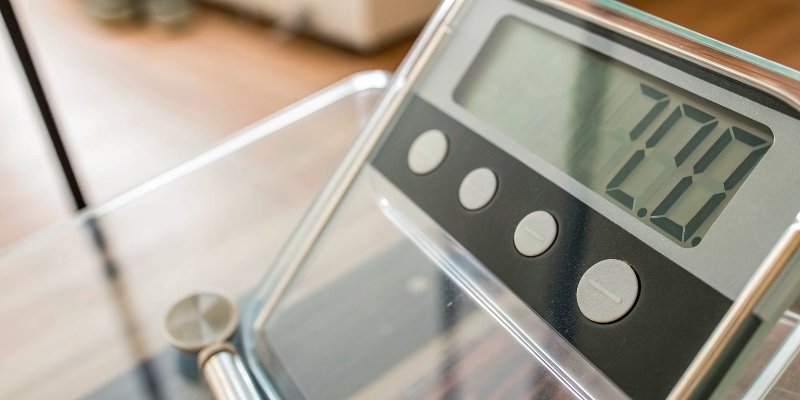
Error codes are not a bad thing. They are the scale's way of communicating with you. Instead of just giving a wrong weight, the scale is telling you why it can't provide an accurate one. As a manufacturer, we program these codes to help you diagnose problems instantly. Learning the most frequent ones is like learning a few words of a new language—it makes everything much easier. For example, an overload error3 is a crucial warning. Ignoring it and leaving the heavy weight on the scale can permanently damage the load cell, leading to an expensive repair.
Common Error Codes and Their Fixes
| Error Code | Common Meaning | How to Fix It |
|---|---|---|
O-Ld, Err, EEEEE |
Overload. The weight on the pan exceeds the scale's maximum capacity. | Immediately remove the weight from the pan to prevent damage to the load cell. |
-O-Ld, Err, L |
Underload or Negative Value. The weighing pan may be missing or improperly installed. | Ensure the weighing pan is correctly seated on the scale. Press the ZERO/TARE button. |
Lo, BAT |
Low Battery. The power source is too weak to provide accurate readings. | Replace the batteries with a fresh set or connect the AC adapter to a reliable power outlet. |
UnSt, Err 4 |
Unstable. The scale is detecting vibration or movement and cannot get a stable reading. | Move the scale to a solid, level surface away from vibrations and drafts. |
CAL E, Err 1 |
Calibration Error. The calibration procedure has failed. | Re-read the calibration instructions in the manual. Ensure you are using the correct calibration weight on a stable surface. |
What should you do first if your digital scale won't turn on?
Your scale is completely unresponsive, and work has stopped. You immediately worry about a costly repair. But a lot of the time, the fix is simple and takes just a minute.
If your digital scale won't turn on, always check the power source first. For battery models, install a fresh set of batteries, checking for correct orientation. For AC-powered units, confirm the adapter is securely plugged into both the scale and a working wall outlet.
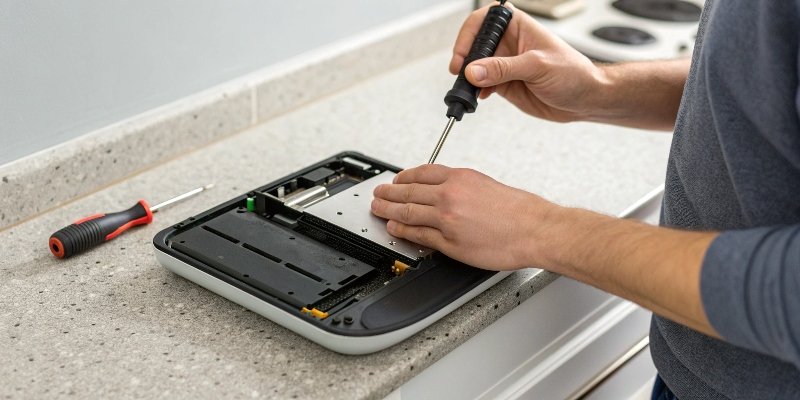
I know it sounds basic, but you would be amazed how many "broken" scales we receive for repair where the only problem was dead batteries or a loose plug. I once spent 20 minutes on a video call with a panicked purchasing manager whose new weighing system was "dead on arrival." I asked him to try plugging his phone charger into the same power strip. The outlet was dead. We both had a good laugh, and he was relieved. Always check the simple things before you assume the worst. A methodical check of the power pathway will solve this problem most of the time.
Step-by-Step Power Troubleshooting
1. Analyze the Power Source
- For Battery-Powered Scales: Don't just replace the batteries; inspect the compartment. Are the contacts clean and free of corrosion? Is the battery orientation correct (+ to +, - to -)? Did you use a fresh, brand-new set? Sometimes a "new" battery from a drawer has already lost its charge.
- For AC-Powered Scales: This is a multi-step check. Is the adapter's plug firmly in the wall? Is the other end firmly in the scale? Many adapters have a small indicator light; is it on? Very importantly, are you using the correct adapter? Using one with the wrong voltage can prevent the scale from turning on or even damage it permanently.
2. Inspect the Hardware
- The Power Button: Look at the power button itself. Does it feel stuck, mushy, or broken? Dust and debris can sometimes get lodged in the button mechanism.
- The Fuse: Some larger industrial scales have a small, user-replaceable fuse located near the power jack. Check your user manual to see if your model has one and how to inspect it.
If you have thoroughly checked all these points and the scale still won't turn on, then it may be an internal issue with the mainboard. At that point, it's time to contact us or your supplier for professional service.
Conclusion
Troubleshooting a digital scale is usually straightforward. Focus on the environment, power, and calibration. These quick checks solve most issues, saving you both time and money.


Comments (0)