
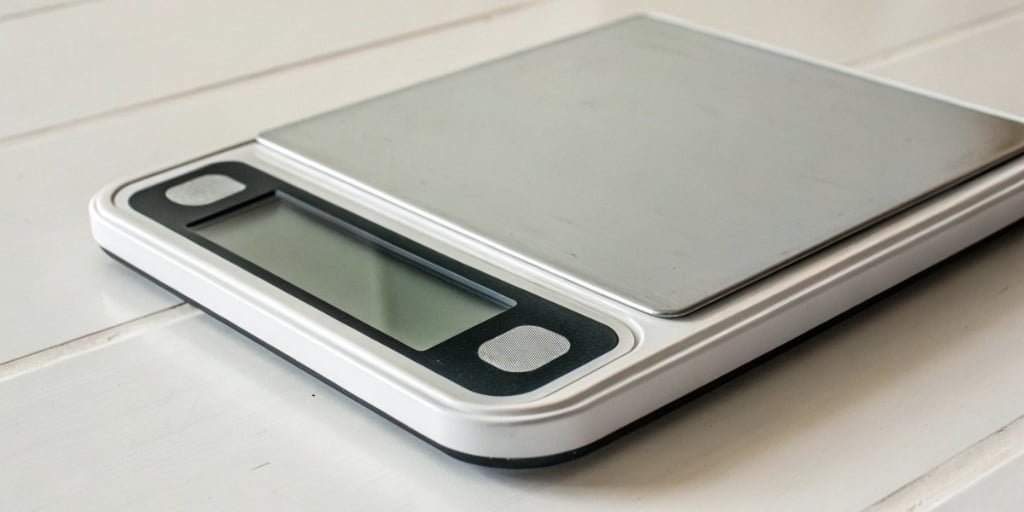
Your production line halts, all because a scale shows a cryptic "Error" message. This stoppage wastes valuable time and money, causing major frustration and workflow delays.
First, check if the scale is overloaded, on an unstable surface, or if the display is simply out of power. For specific error codes like "Err 01" or "O-Ld," consult your user manual, as premium scales use these codes to tell you exactly what's wrong.
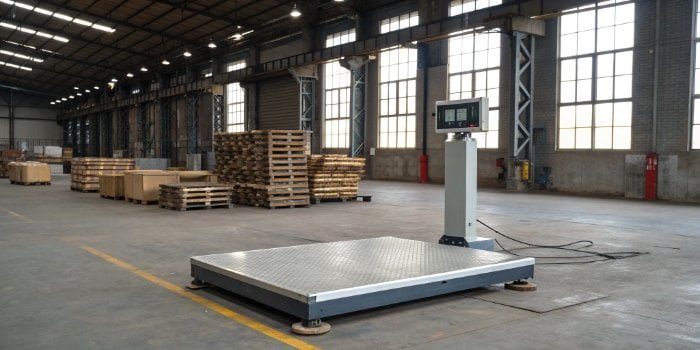
Seeing an error on a weighing scale can be alarming, especially when a busy production schedule depends on it. From my 18 years of experience manufacturing industrial scales, I’ve seen it all. The good news is that most of these errors are easy to fix with a few simple checks. Often, it's something you can resolve in minutes without needing to call for technical support.
But a generic "Error1" message can feel like a dead end. It doesn’t tell you anything specific. This is a key difference between a basic scale and a professional-grade one. A superior scale will give you a specific code, which is a massive help. In this article, I’ll walk you through how to troubleshoot both generic errors and blank displays, so you can get your operations back on track quickly.
How to fix a scale that says error?
Seeing "Error" on your scale feels like a dead end. You are unable to weigh anything, and you are unsure of how to begin fixing it.
Start by removing any weight from the platform and turning the scale off and on again. This simple reset often clears temporary glitches. If the error continues, check for overloading, an unlevel surface, or debris underneath the weighing platform.

When a scale just says "Error," it's asking you to do a quick visual inspection. Think of it as a general warning light. Over the years, we've found that these issues almost always fall into a few common categories. By following a logical process, you can quickly identify and fix the root cause. It's much less complicated than it might seem. Let’s break down the steps you should take right away.
The Initial Troubleshooting Checklist
Your first response should be to check the most common and simplest causes.
- Power Cycle2: The classic solution for a reason. Turning the scale off for a few seconds and then turning it back on clears the internal memory of any temporary glitches or software hiccups. This single step solves a surprising number of issues.
- Check for Overload3: Most scales have a maximum capacity. If you put too much weight on it, the scale will show an error to protect its internal load cells from damage. Remove everything from the platform and see if the error disappears.
- Level the Surface4: Industrial scales are sensitive. If the surface isn't perfectly level, the pressure on the load cells will be uneven, leading to inaccurate readings and errors. Use a spirit level on the platform to check. Most industrial scales have adjustable feet to help you get it perfectly flat.
Inspecting the Hardware and Environment
If the initial checks don't work, the problem might be physical.
- Debris Check5: Look for any dirt, packaging material, or small objects that might have gotten stuck under or around the weighing platform. Anything that blocks the platform's free movement can cause an error.
- Cable Inspection6: If your scale has a separate indicator, check the cable that connects it to the base. Make sure it's plugged in tightly at both ends and that the cable itself is not bent, cut, or damaged.
| Generic Error | Common Cause | Quick Fix |
|---|---|---|
| "Error" / "Err" | Overload / Unlevel Surface | Remove all weight / Adjust feet to level the scale |
| "O-Ld7" / "EEEE" | Capacity Overload | Immediately remove the excess weight from the platform |
| "Lo" / "BAT" | Low Battery8 | Replace the batteries or connect the AC power adapter |
How do I fix my digital scale display?
Your digital scale’s display is blank or flickering, which makes it completely useless. Without a clear readout, you cannot get measurements, which stops your entire workflow.
For a blank display, first check the power source. See if the AC adapter is securely plugged in or if the batteries have a charge. For a flickering display, inspect the power cable for damage or a loose connection at either end.

A blank display is one of the most common issues we get calls about. I remember a client who was convinced their new scale was broken because the display was dead. After a quick call, we discovered a cleaning crew had unplugged it to use a vacuum and hadn't plugged it back in all the way. It’s almost always a power or connection issue. These are simple to check and usually simple to fix. Let's go through the possible causes for a dead or unstable display.
Power Supply Issues Are the #1 Cause
If the display isn't on, it isn't getting power.
- AC Power: If your scale uses an AC adapter, check both ends. Is it firmly in the wall socket? Is it securely connected to the scale? Try plugging something else into the same wall socket to make sure the outlet itself is working.
- Battery Power: For battery-operated scales, do not just assume the batteries are good. Replace them with a brand-new set. We've seen old batteries cause all sorts of problems, like flickering displays or the scale not turning on at all, even if they show some voltage on a tester.
- Power Adapter Failure: Sometimes, the external power adapter itself can fail. If you have another device that uses the same type of adapter, you can try swapping it to see if that resolves the issue.
Connection and Environmental Factors
If power isn't the problem, look at the physical connections and the surrounding environment.
- Indicator Cable: The cable running from the scale base to the display indicator is often moved around, making it a common point of failure. Check for any sharp bends, cuts, or crushed spots. Unplug it and plug it back in to ensure a solid connection.
- Moisture and Temperature9: Digital displays are sensitive to their environment. High humidity or condensation can cause short circuits, while extreme cold can make an LCD display sluggish or blank. Make sure your scale is operating within the temperature and humidity range specified in its manual. Our Weigherps scales are designed for tough industrial environments, but all electronics have their limits.
Why does a weighing machine show an error?
You are left trying to figure out why your scale is suddenly showing an error. If you do not know the reason, you cannot stop it from happening again.
A scale shows an error when its internal sensors, called load cells, detect an unstable reading. This can be caused by overloading, physical shock, an unlevel surface, temperature changes, or an internal electronic fault. Better scales use specific error codes to help you identify the exact problem.
Understanding the "why" behind an error is crucial. It’s the difference between temporarily fixing a problem and preventing it from ever happening again. In essence, an error message is the scale’s way of telling you, "Something is wrong, and the weight I'm showing might not be accurate." A basic scale stops there. But a well-designed industrial scale will go a step further. This is where we, as manufacturers, can make a huge difference for our customers.
The Frustration of Generic "Error" Messages
Many lower-cost scales use a single, generic "Error" message for every possible problem. This is a simple design choice to reduce manufacturing costs. It groups many different issues—like overload, calibration drift, and hardware failure—under one unhelpful warning. This forces you to guess what's wrong, which wastes valuable time. You have to work through a long checklist without any guidance from the equipment itself.
The Power of Specific Error Codes
At Weigherps, we believe in empowering our users. We design our scales to be partners in your workflow, not obstacles. That’s why our professional-grade scales feature a range of specific error codes. Instead of just "Error," you might see "ERR 03" for an overload or "ERR 01" for an unstable surface. This immediately tells you what the problem is and how to fix it. This targeted approach turns a frustrating problem into a simple, actionable task. It minimizes downtime and reduces the need for costly service calls.
| Example Error Code | Meaning | What You Should Do |
|---|---|---|
| ERR 01 | Unstable Weight | Make sure the scale is on a solid, vibration-free surface. |
| ERR 02 | Zero Point Drift10 | Remove everything from the scale and press the Zero/Tare button. |
| ERR 03 | Overload3 Condition | Immediately remove the excess weight from the platform. |
| ERR 04 | Load Cell Fault11 | The internal sensor may be damaged. Contact technical support. |
| ERR 06 | Calibration Data Error12 | The scale needs to be recalibrated. Follow the manual's instructions. |
What to do if my weighing scale is not working?
Your weighing scale is completely unresponsive, and your operations are at a complete stop. You need a reliable process to follow when your important equipment fails.
If your scale isn't working at all, perform a full system check. Verify the power source, inspect all cables for damage, make sure the platform is clean and unobstructed, and then try a power cycle. If it still fails, the problem is likely internal and needs professional service.

When a scale is completely dead—no lights, no display, nothing—it can feel like a serious problem. But before you panic or call for service, it's worth running through one final, systematic check. This flow covers all the common issues we've discussed and ensures you've ruled out all the simple fixes. Following these steps can often bring a scale back to life, and if not, it provides valuable information for a support technician when you do need to make that call.
A Systematic Troubleshooting Flow13
Follow this checklist in order.
- Check Power: Is the AC adapter plugged in securely at the wall and at the scale? If it uses batteries, have you replaced them with a fresh set?
- Check Display & Connections: Is the display cable connected firmly at both ends? Look for any signs of damage on the cable itself.
- Check the Platform: Is the scale on a level surface? Is there anything caught underneath the weighing pan that is stopping its movement?
- Reboot and Recalibrate: Disconnect the scale from power completely for 30 seconds, then reconnect it. If it turns on but gives errors, try to perform a recalibration using calibration weights as described in your user manual.
When to Call for Professional Help14
If you've gone through the entire checklist and the scale is still not working, it's time to call in a professional. Trying to open the scale and fix internal components yourself can cause more damage and may void your warranty. Contact the manufacturer or your supplier if you experience:
- The scale still won't turn on after all power checks.
- The same error code reappears immediately after you fix the initial cause.
- The scale has visible physical damage from being dropped or hit.
- The readings are consistently inaccurate even after recalibration.
As a manufacturer with an 18-year history, we stand behind our products. Our technical and after-sales departments are here to provide professional support, and our scales come with a 12-month service guarantee to give you peace of mind.
Conclusion
Understanding your scale's errors saves time and money. While basic checks fix most issues, the specific error codes provided by quality scales offer the fastest path to a solution.
-
Understanding the meaning of an 'Error' message can help you troubleshoot and resolve issues quickly. ↩
-
Discover the effectiveness of power cycling in resolving temporary glitches in scales. ↩
-
Understanding overload causes can help you avoid damaging your scale and ensure accurate readings. ↩ ↩
-
Learn how a level surface affects scale accuracy and prevents errors. ↩
-
Find out how keeping the scale clean can prevent errors and improve functionality. ↩
-
Inspecting cables can prevent connection issues and ensure your scale operates smoothly. ↩
-
Learn about the 'O-Ld' error code to prevent overload issues and protect your scale. ↩
-
Learn how to quickly resolve low battery issues to keep your scale functioning. ↩
-
Explore how environmental factors can impact scale performance and accuracy. ↩
-
Learn about zero point drift to maintain accurate measurements on your scale. ↩
-
Understanding load cell faults can help you address serious scale issues effectively. ↩
-
Understanding calibration errors can help you maintain accurate measurements. ↩
-
A systematic approach can help you efficiently diagnose and fix scale issues. ↩
-
Knowing when to seek professional assistance can prevent further complications. ↩



Comments (0)